
A visitor taps through from Instagram while waiting for a coffee. They have one hand, an ordinary mobile connection and a straightforward question. Can this business help me? A looping film, a social feed and a booking widget all begin loading before the page gives them a clear answer.
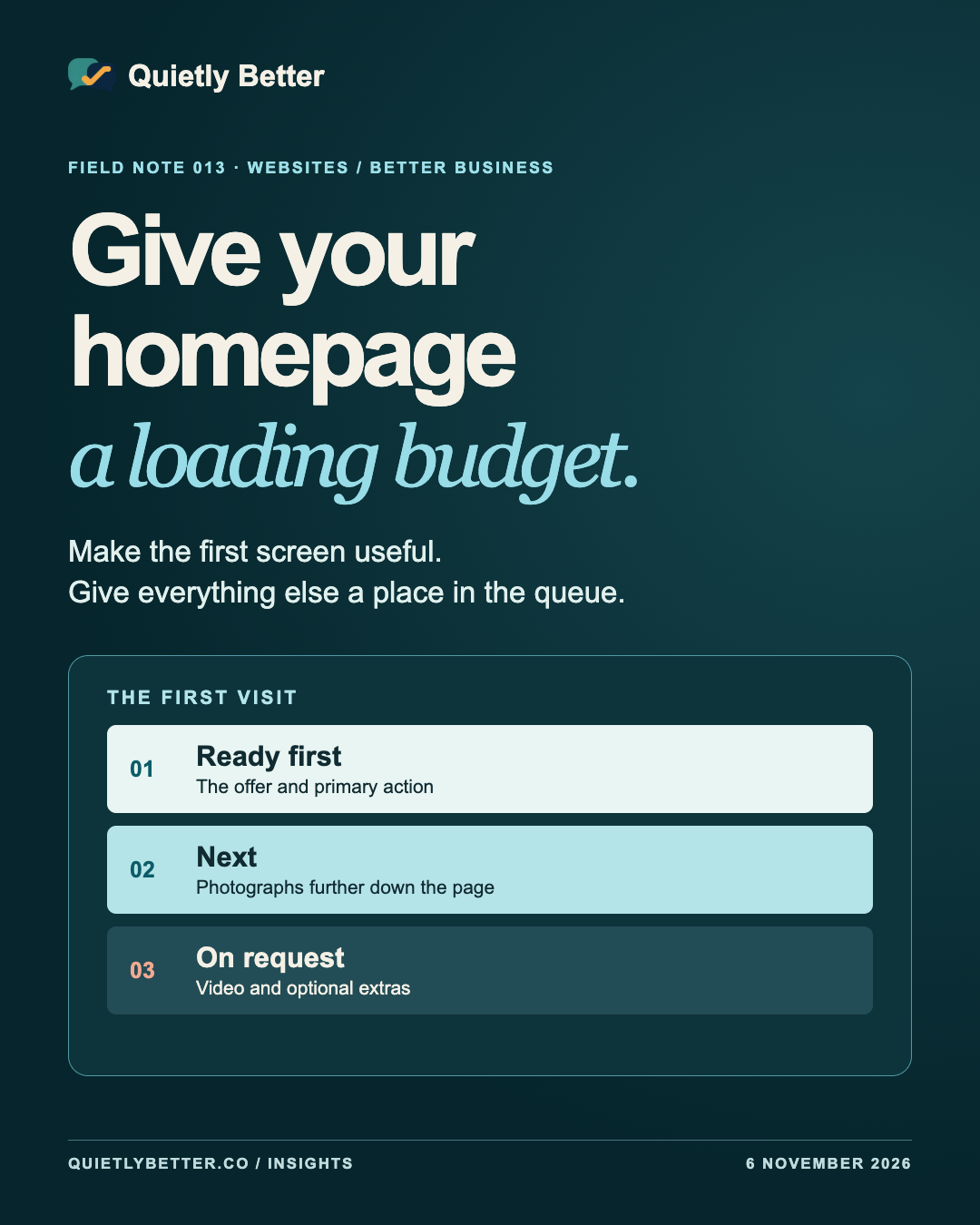
A loading budget is an agreement about what the website asks a visitor’s browser to download and run, and when. Start with what someone needs to see or do. Then give early space to the things that help them do it. The best photograph in the project might earn that space. The seventh photograph probably has a better home further down the page.
This is a practical method for a small business homepage. It also works for the service page or offer that people actually reach from your social posts. Choose that real entry page before you start measuring.
Decide what the first screen owes the visitor
Write a short sentence before opening a performance tool. For a hypothetical South Coast signwriter, it could be: someone arriving on a phone can recognise our work, see where we operate and find the quote button. That sentence gives the designer a way to decide which part of the page should arrive first.
The first screen might need the name, one clear offer, a line about the service area and a useful action. A strong picture of a finished shopfront could answer a question the words cannot. Keep that image if it helps people judge the work. Choose its crop for the phone and check that the important details survive compression.
Write a second sentence for what can wait. In this example the project gallery, map and workshop video can appear further down or when someone asks for them. The quote link should still be reachable while those extras load. It should also go somewhere useful if the booking or quoting provider takes a moment.
Give the page a number you can test
HTTP Archive’s 2025 Web Almanac, published in January 2026, puts the median mobile homepage at about 2.6 MB in its page-weight chapter. Its breakdown shows images and JavaScript among the largest categories. That is a benchmark from the measured sample. Use it to ask what the site is sending before setting a target for your own page.
Pick a consistent measurement window. For a straightforward homepage, one starting rule could be a maximum of 1 MB transferred in the first ten seconds of a fresh visit under a named mobile simulation, with no scrolling or clicks. Treat that number as a working constraint for the example. A portfolio, store and booking service will have different jobs and may need different budgets.
Track the most important customer action alongside the byte number. An early transfer limit can look fine because a large file arrives in the eleventh second or because the connection is too slow to finish it. Record pending requests at the end of your window and separately check that the first screen is useful and its primary control works. Include the limit, observation window and device assumptions in the handover.
Run the same first visit before and after
In Chrome DevTools, open Network, select Disable cache and choose one named network throttling preset. Keep DevTools open, use the same viewport and reload the exact page. Note the browser, test conditions and date. Watch what appears first, then record the transferred total and biggest requests at the agreed point. The waterfall helps you see which downloads start early and what finishes late.
Run the same steps three times. Save the middle result for each numeric measure along with the spread if it varies substantially. Write down what was visible and usable. Then try the actual journey on an ordinary phone, including tapping through from the public link a customer uses. That last check can expose a sticky banner, poor crop or a button that takes a second tap.
Cache-disabled simulation gives you a repeatable comparison. Actual visitor experience varies with networks, devices, repeat visits and the part of the site people use. Compare measurements from the same setup and keep the phone observations alongside the figures. A screen recording can make the practical problem clearer to a business owner than a page of audit scores.
Spend early bytes on the work that matters
Start with the biggest early requests and ask what each one does for the visitor. If the main image carries the proof, serve a size appropriate to the display and keep its visible detail. Make room for it in the layout before it arrives. If testing shows that image is the largest visible element measured by LCP, make it available promptly. Google’s LCP guidance warns against applying lazy loading to that image.
Give rich media a deliberate entrance. A static frame with a clear play control can hold the place for a useful video. A directions link can serve the quick trip planning job while a heavier map is reserved for the people who open it. Test the actual click and the fallback, especially when the external service responds slowly.
Check scripts as well as images. Two tools may be doing the same job, or a widget that appears well down the page may still start as soon as someone lands. Ask the owner what the tool supports before removing it. Try the simpler change first, such as postponing a gallery script or moving the social feed to a dedicated page, and test the original customer task again.
Read performance numbers alongside the page
Google’s Core Web Vitals separate three aspects of experience. Largest Contentful Paint measures when the largest visible content appears. Interaction to Next Paint measures responsiveness across interactions. Cumulative Layout Shift captures unexpected movement. Google’s good thresholds are 2.5 seconds, 200 milliseconds and 0.1 respectively, assessed at the 75th percentile for mobile and desktop separately.
A network trace can explain why the big image starts late. A tap on the menu or quote button can reveal a pause while the browser has other work to do. A screen recording can catch a button shifting under a thumb as an image loads. Each observation points to a different fix. Put the number beside the experience it represents when deciding what to change.
If PageSpeed Insights has real-user data, check whether it covers the exact page or the whole site and whether it is mobile or desktop. Google’s guidance explains that site-wide data can appear when page-level data is too sparse. If there is no field data for the page, keep the lab runs and phone test labelled as observations under their test conditions.
Keep a one-line record for the next update
Put the decision in the same place you keep the website brief. For the signwriter, a useful line might read ‘Mobile quote page, first ten seconds, 1 MB, one finished-work image up front, video on request, quote link usable as the page loads.’ Attach the test settings and the date. Those numbers describe the example’s proposed limit and can be adjusted once the real page has a baseline.
Before adding a new gallery, review widget or animation, read that line. If the addition earns early space, decide what can arrive later or revise the budget for a specific reason. A large autumn campaign may need a different hero image. The person making the change should have enough information to keep the important parts working.
Start this week with the page people reach from your most useful social post. Open it on a phone, wait for the first useful answer and try the next step. Then run one repeatable network check and write down the largest thing the browser fetched before the customer needed it. That is a concrete discussion to take into the next site update.
Sources and further reading
Platform statements are linked to primary sources. The practical examples, recommendations and interpretation are Richard's analysis; they are not promises of reach, rankings or sales.
- HTTP Archive — 2025 Web Almanac, Page WeightPublished January 2026. Figure 14.7 reports the measured median mobile and desktop home page weights for the 2025 dataset. The mobile figure is rounded to about 2.6 MB in this article.
- Google web.dev — Web VitalsDefinitions, current recommended thresholds and the 75th-percentile mobile/desktop assessment.
- Google web.dev — Optimize Largest Contentful PaintDistinguishes lab diagnosis from field measurement and explains prioritising the actual LCP resource.
- Chrome for Developers — Network features referenceOfficial guidance on network throttling, disabling cache and examining transfers and timings.
- Google web.dev — Lazy loading videoOfficial guidance on video posters, preload and deferring third-party players until interaction.
Know someone
who would use this?
Share the article directly, copy its permanent link or download the finished artwork for a manual social post.
https://quietlybetter.co/insights/give-your-homepage-a-loading-budget